
Setting up your signature on Outlook.com
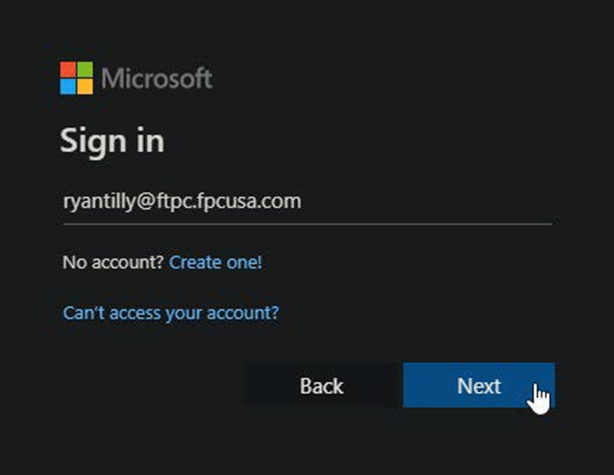
1. Go to outlook.office.com and enter your work email address, then click Next.
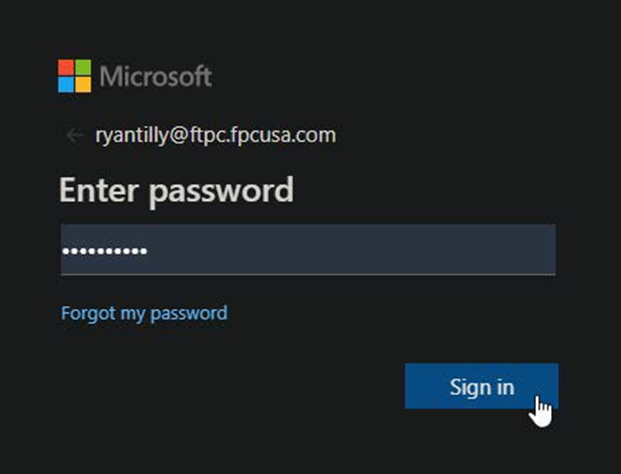
2. Enter your password and click Sign in.
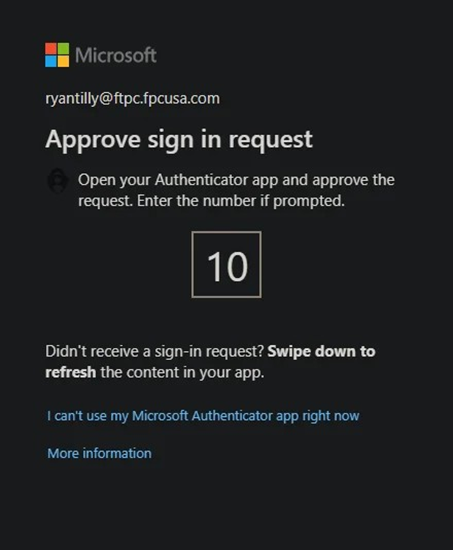
3. Approve the sign-in request using your Authenticator app.
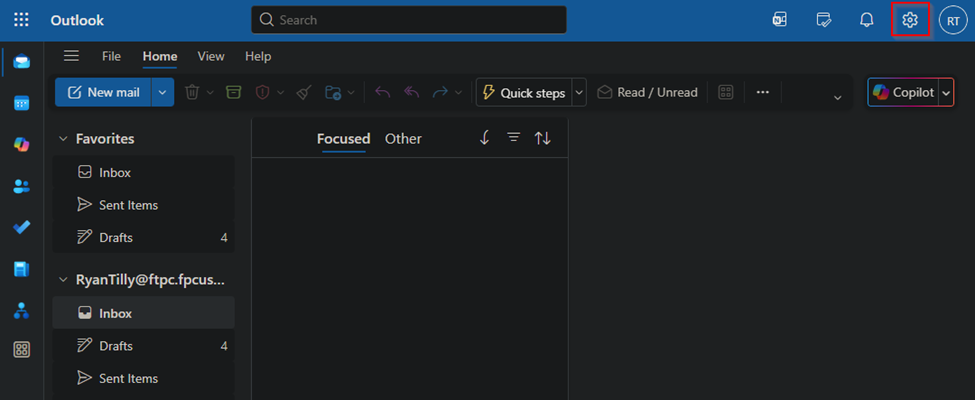
4. Once inside Outlook, click the Settings (gear) icon in the top-right corner.
5. In the Settings panel, click Account on the left side
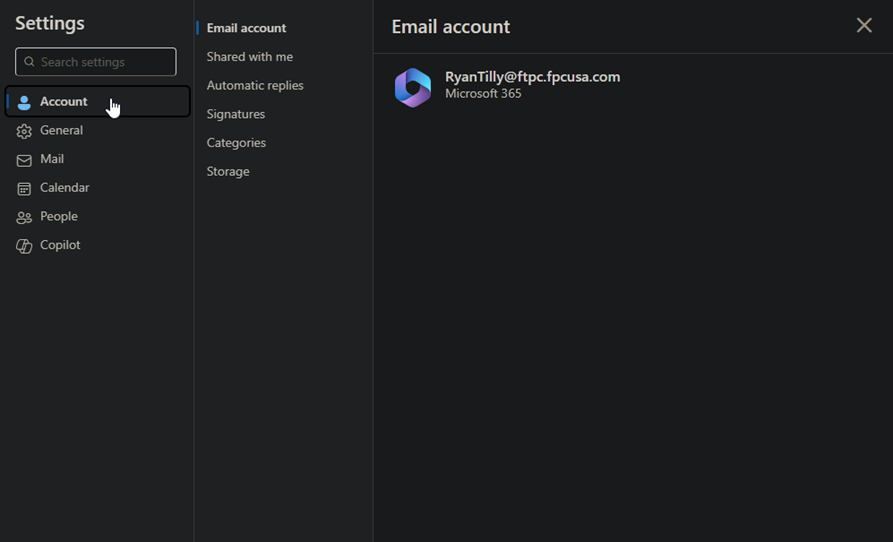
6. Click Signatures to open the Email Signature settings
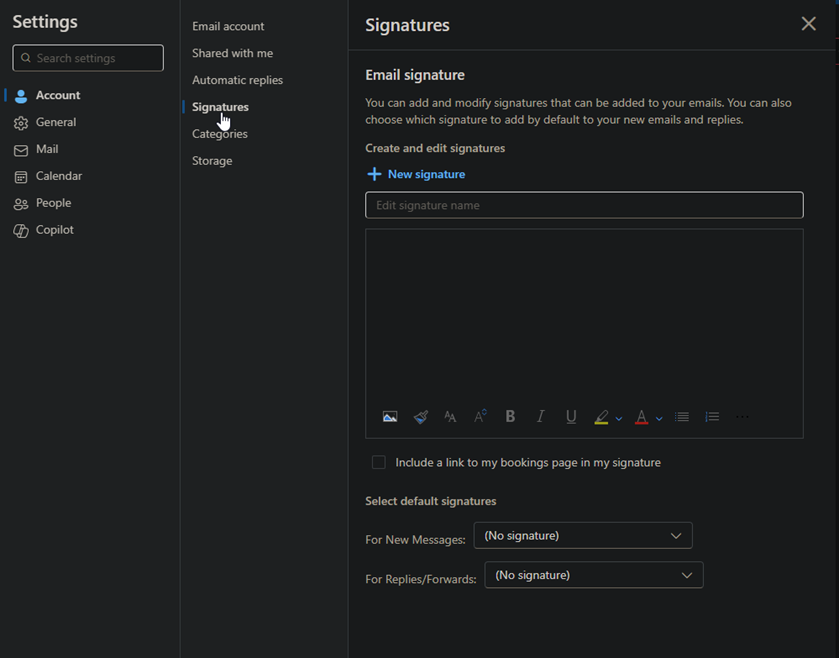
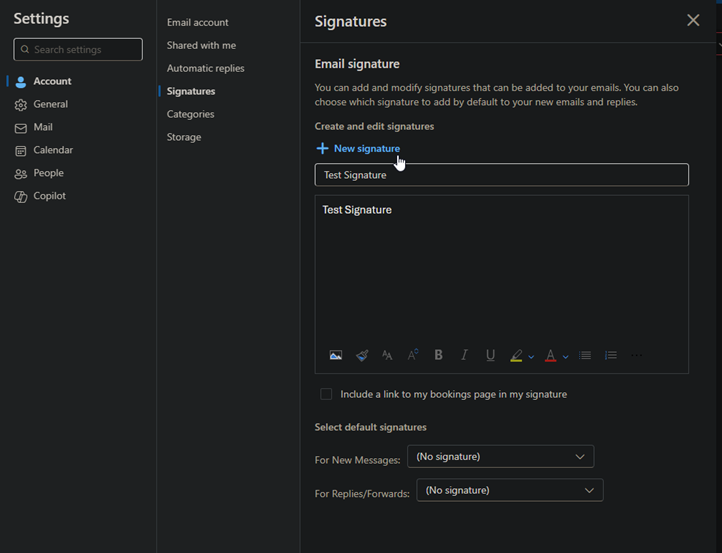
7 . Click + New Signature to create a new signature, then enter a name and type your signature content in the editor
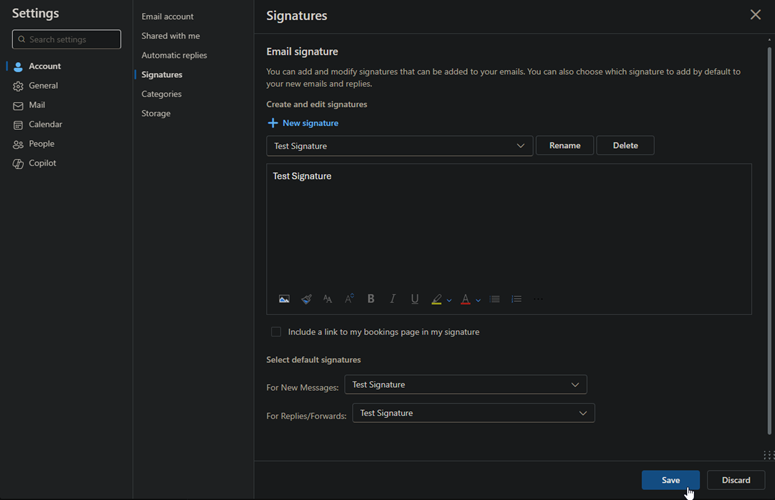
8. Under Select default signatures, choose your signature for New Messages and Replies/Forwards, and click save to complete your signature
Note - Please see attached instructions if you wish to save them to your device.