
If Outlook search is slow, inconsistent, or missing emails, it is often because Outlook is searching email directly from the server instead of a local mailbox. Enabling Cached Exchange Mode allows Outlook to store and index a local copy of your mailbox, resulting in faster, more accurate, and consistent search results.
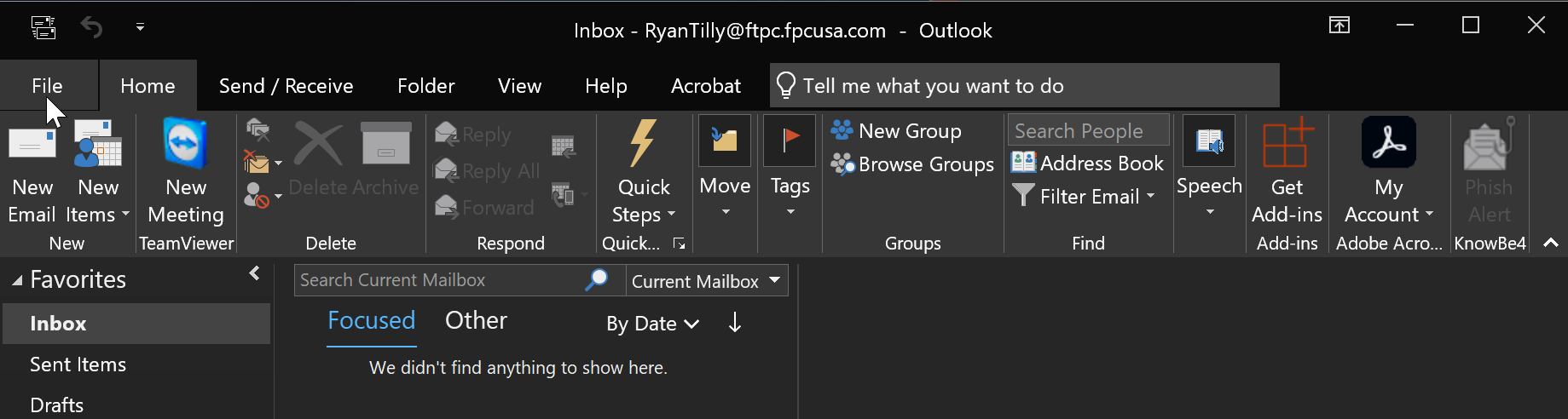
1. Open Outlook and click on File in the top right.
2. Click Account Settings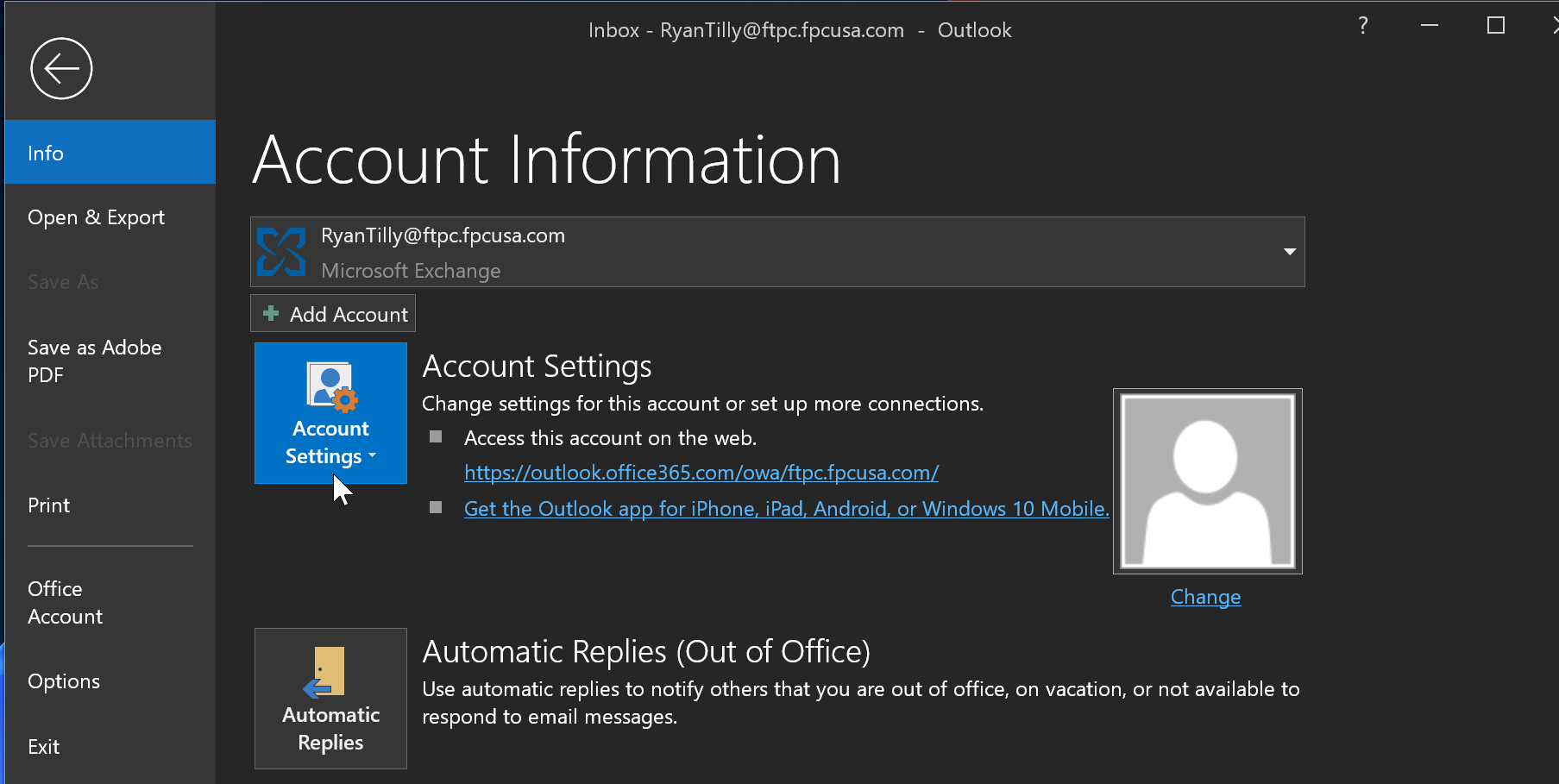
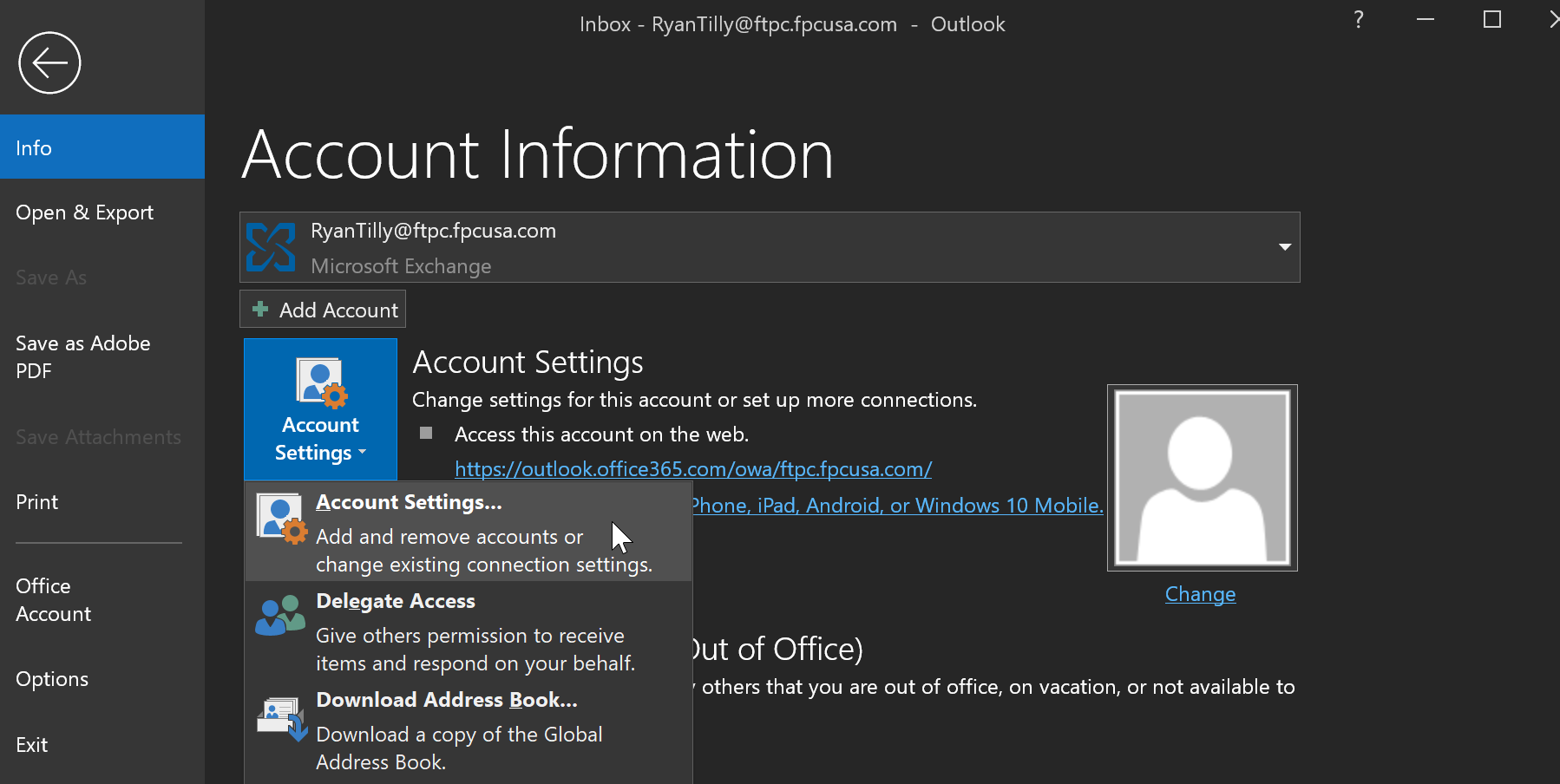
3. Select Account Settings again
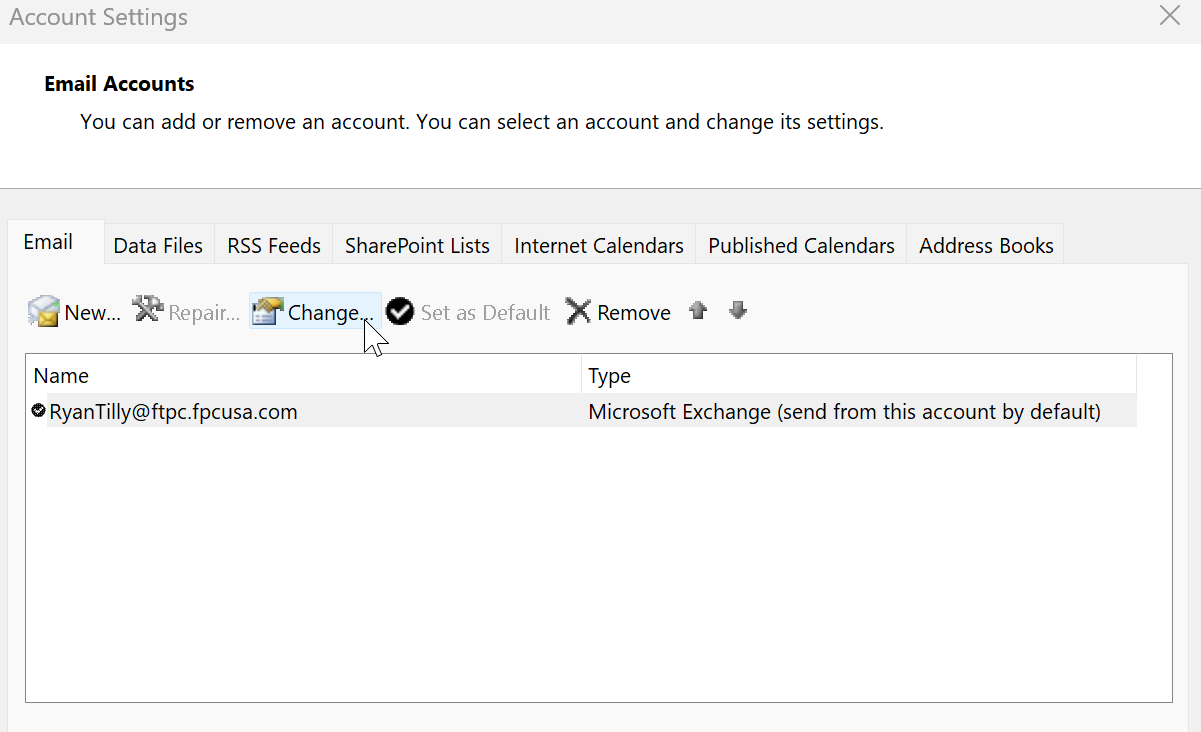
4. Select your email account and click Change.
5. Check “Use Cached Exchange Mode,” then select the time period of emails you want available offline under “Mail to keep offline.”
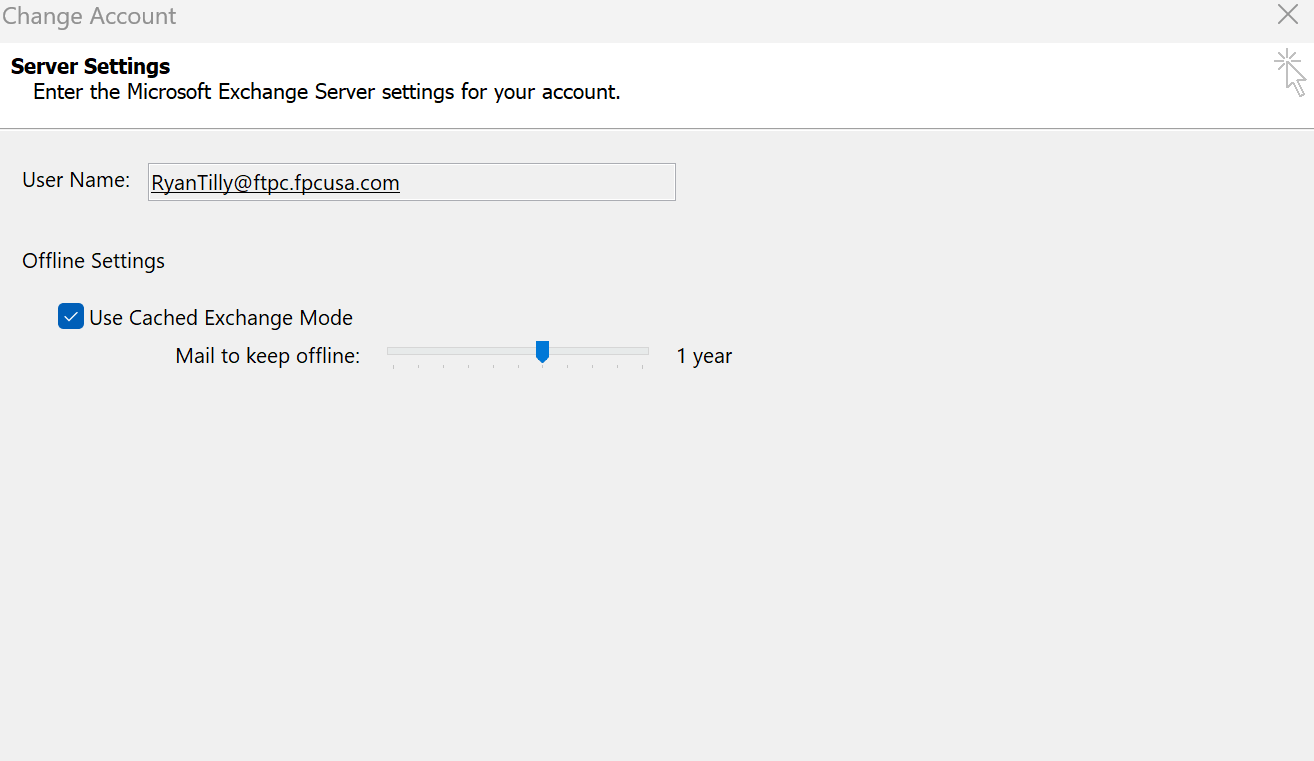
Note – Microsoft recommends setting “Mail to keep offline” to One Year in Outlook 2019 for most Exchange accounts, as this provides the best balance between Outlook performance, reliable and accurate email searching, and efficient disk space usage.
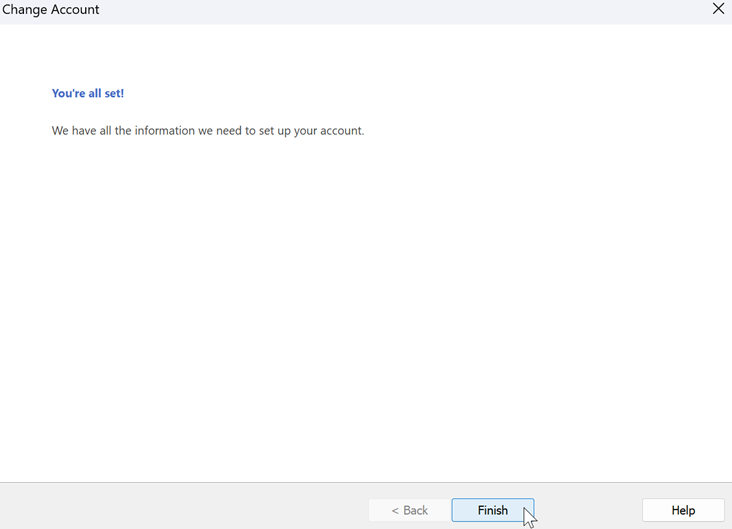
6. Select Next and Finish and restart Outlook.
Note - Please see attached instructions if you wish to save them to your device.