
If Outlook continues to default to the Offline Global Address List, users may not immediately see recent changes such as new employees, updated names, or email address updates. Setting Outlook to use the online Global Address List by default ensures address searches reference the most current directory information available on the server, which can help prevent outdated or incorrect address results.
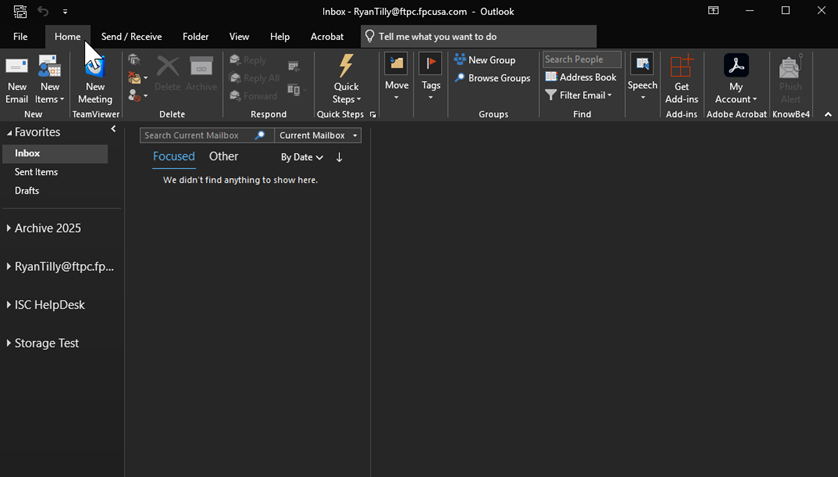
1. Open Outlook and click on the Home tab
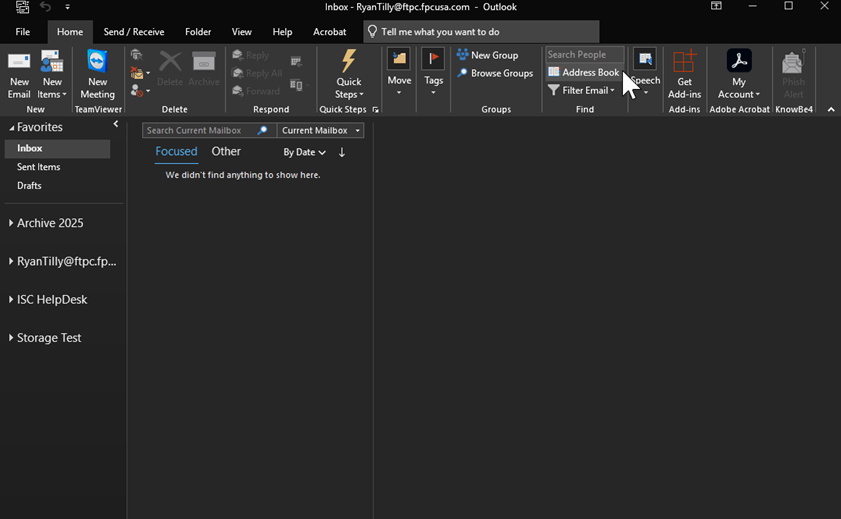
2. Click on the Address Book tab
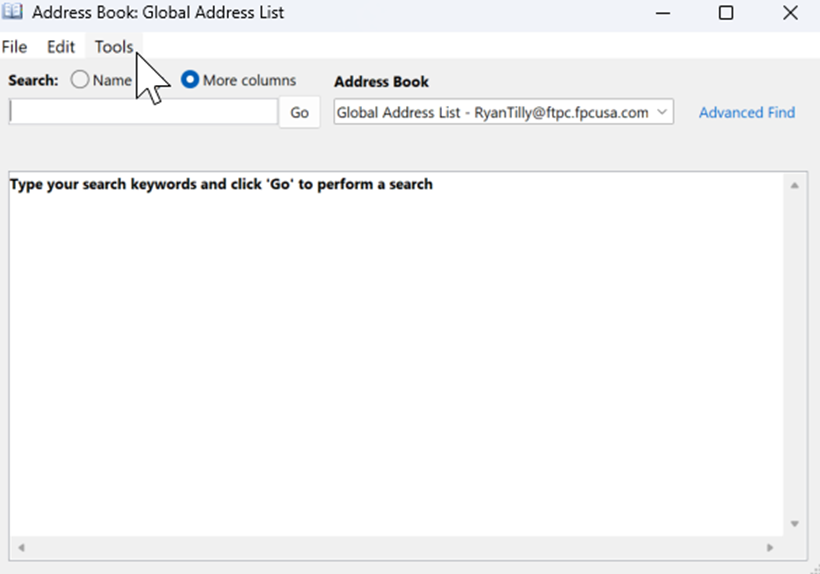
3. Select the Tools tab in the Address Book tab
\
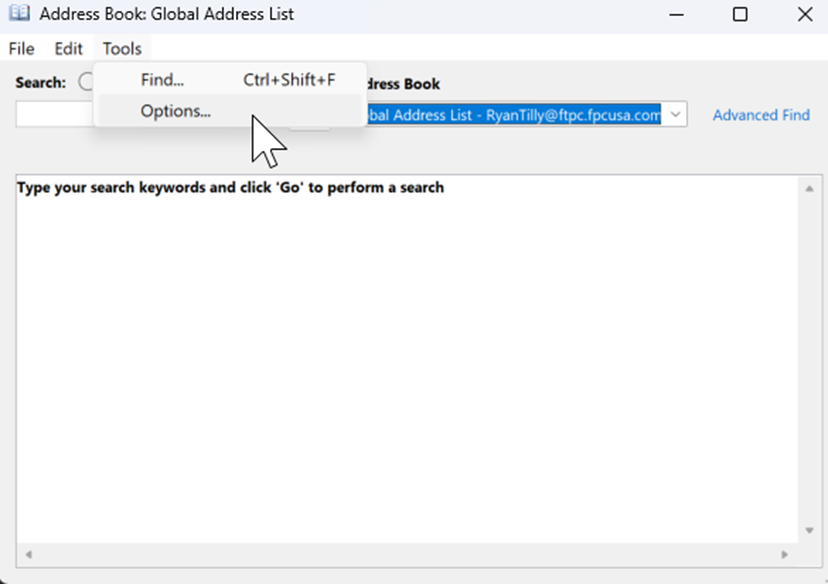
4. Then select Options
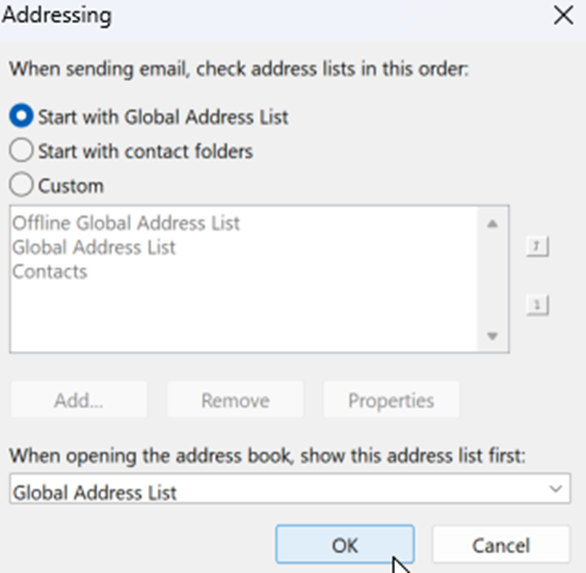
5. Select Start with Global Address List, then choose Global Address List from the drop-down menu at the bottom.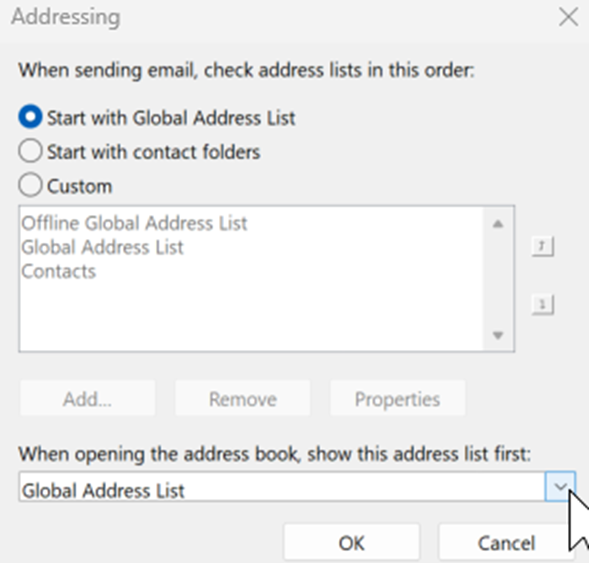
6. Select OK and restart Outlook for changes to save.
Note - Please see attached instructions if you wish to save them to your device.